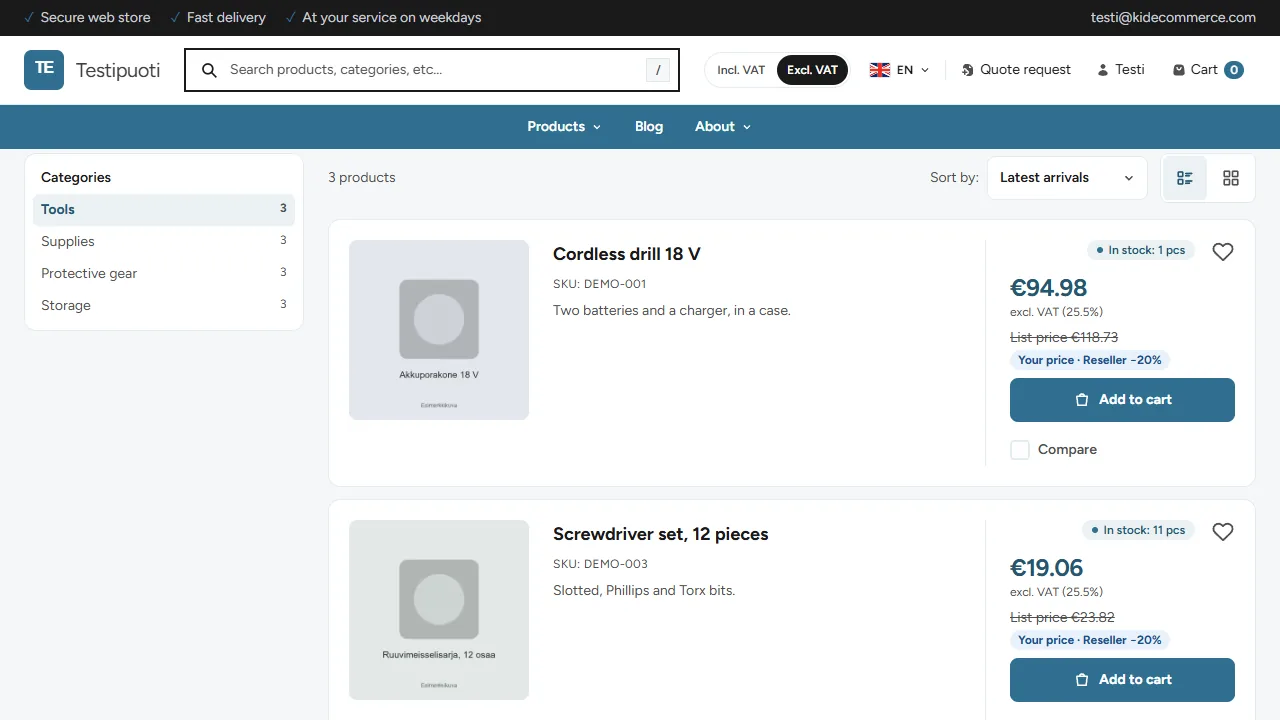
A traditional quote is a PDF in an email. The customer replies, the seller types the order in by hand, and somewhere along the way a price or a quantity goes wrong. Quotes are hard to follow when they sit in different inboxes.
In KIDE the whole flow is in one system. The customer presses Request a quote for this cart, the seller edits the quote in the admin and the customer accepts it in their account. The quoted prices go into the order as they are.
Watch the video: Quote request, quote and order
Video captions
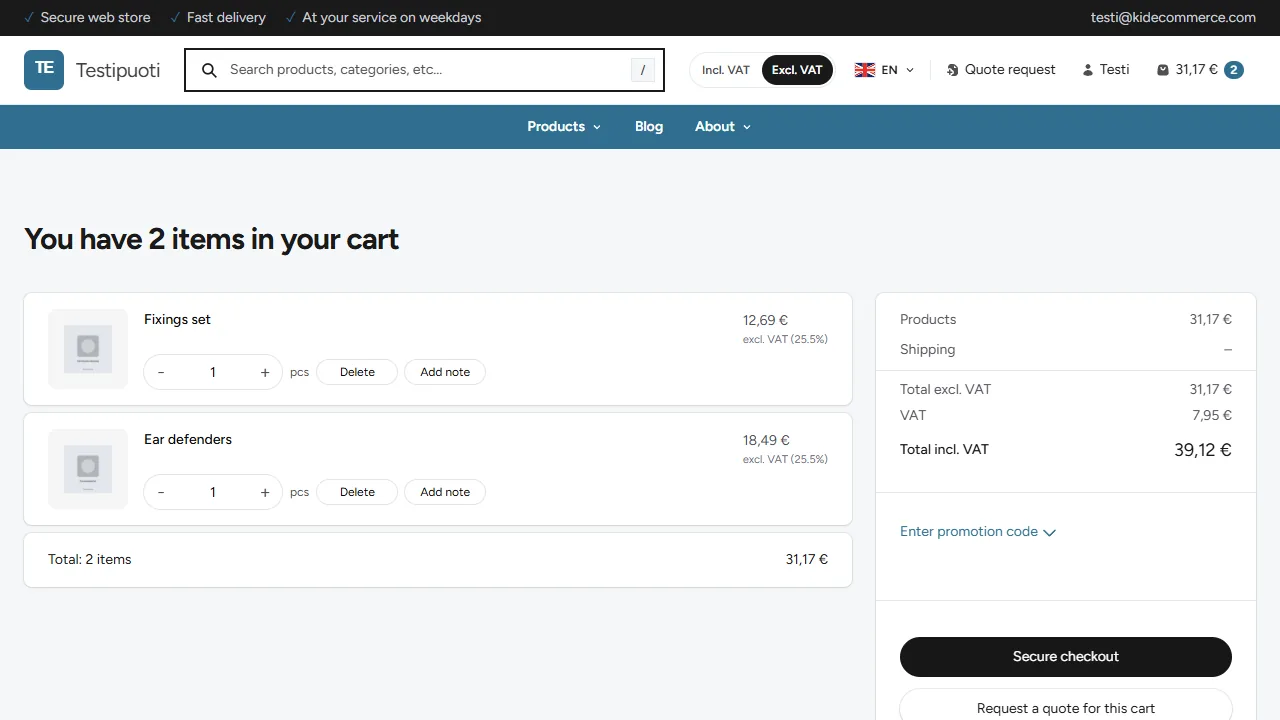
- The customer requests a quote straight from the cart
- The request is with the seller, and the customer sees it in their account
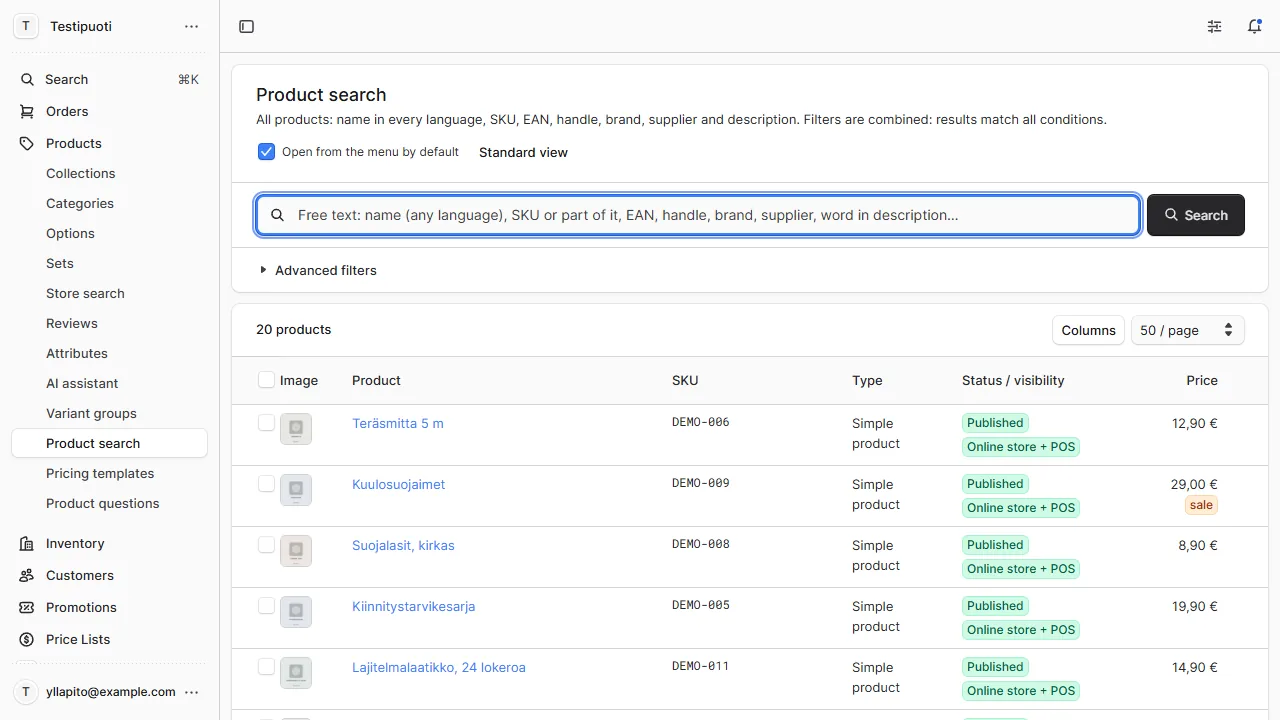
- The seller sees the request in the quote list
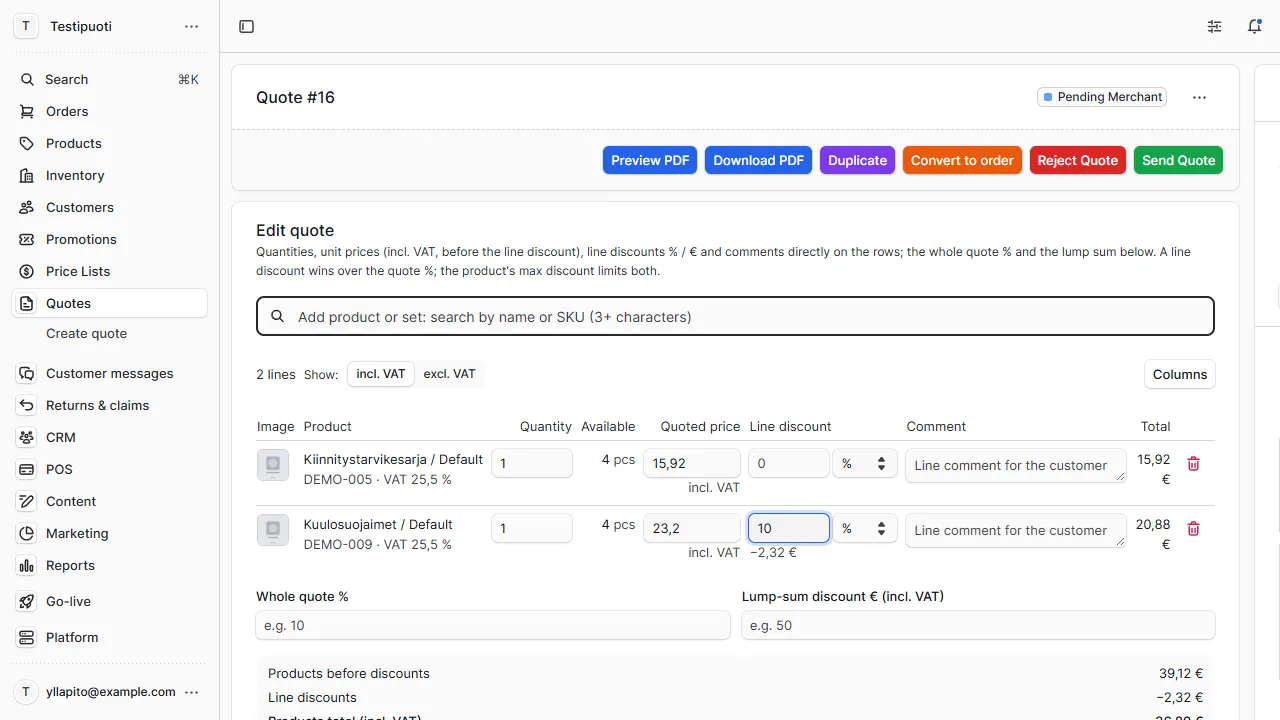
- Quote editor: quantities, prices and line discounts
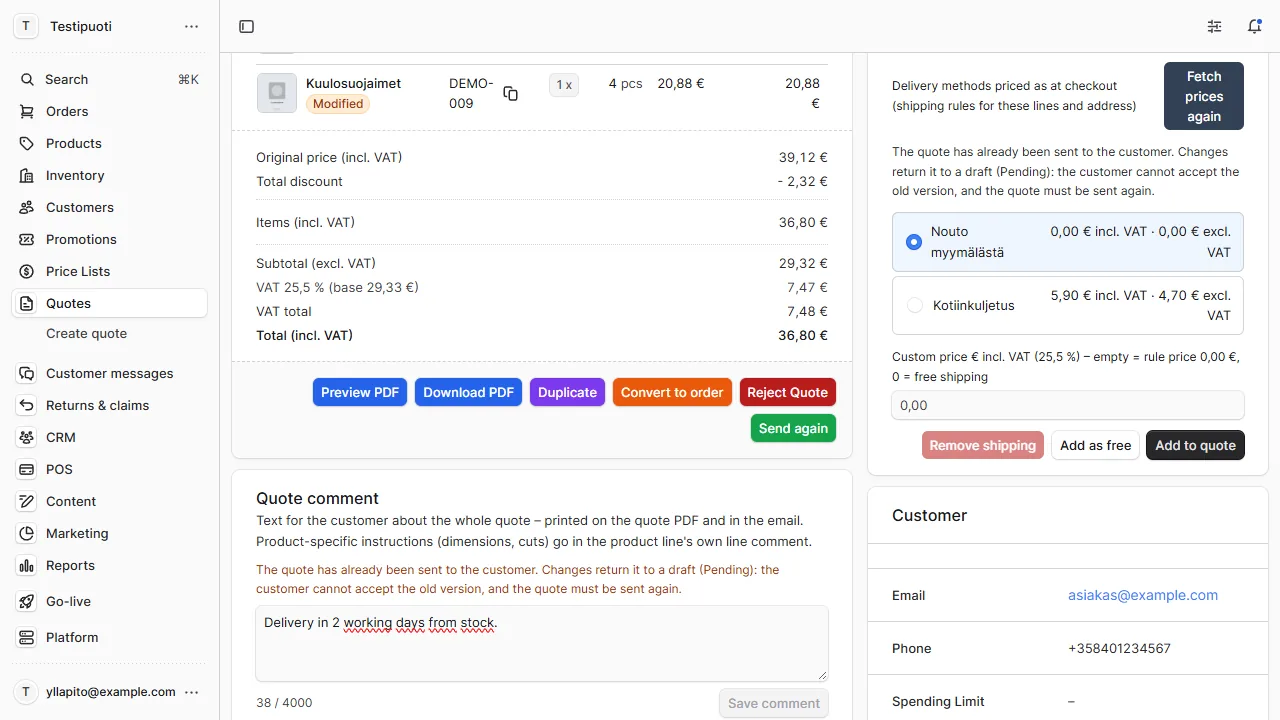
- A note for the customer goes on the quote PDF and in the email
- The quote is sent, and the status is now “pending customer”
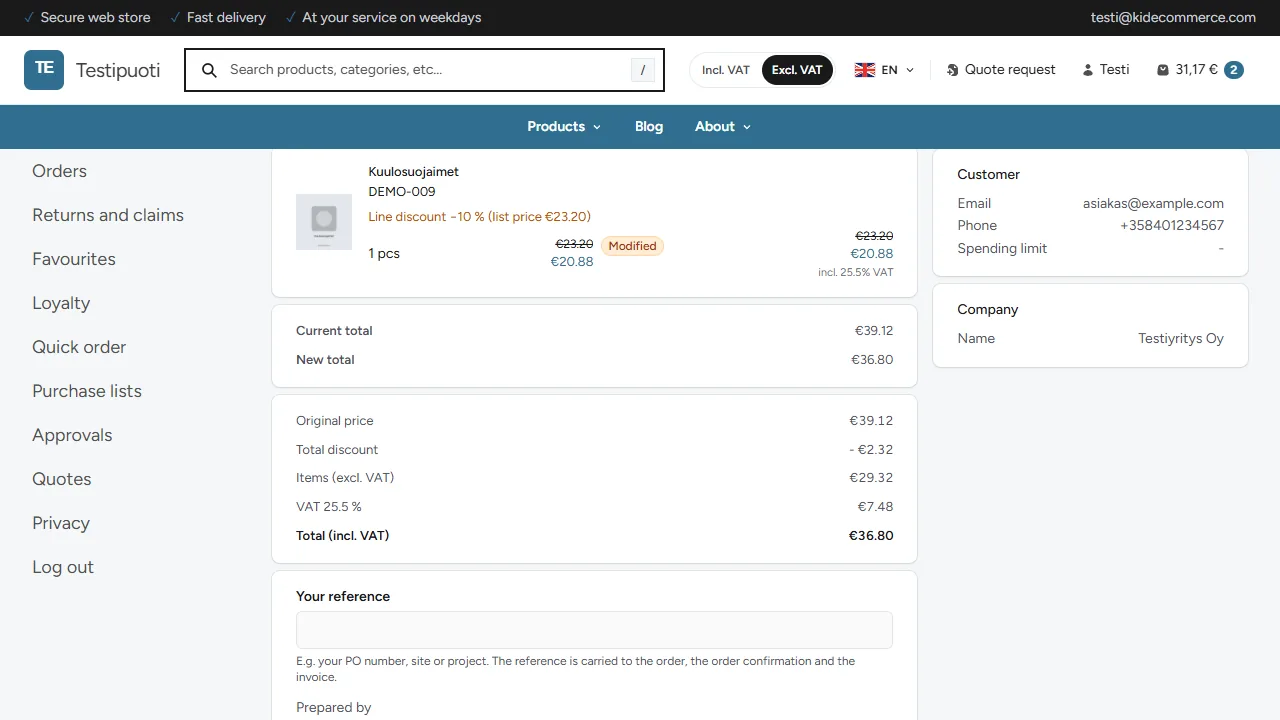
- The customer sees the new prices and the discount
- Accepting: the quote goes to checkout at the quoted prices
- The business customer pays by invoice
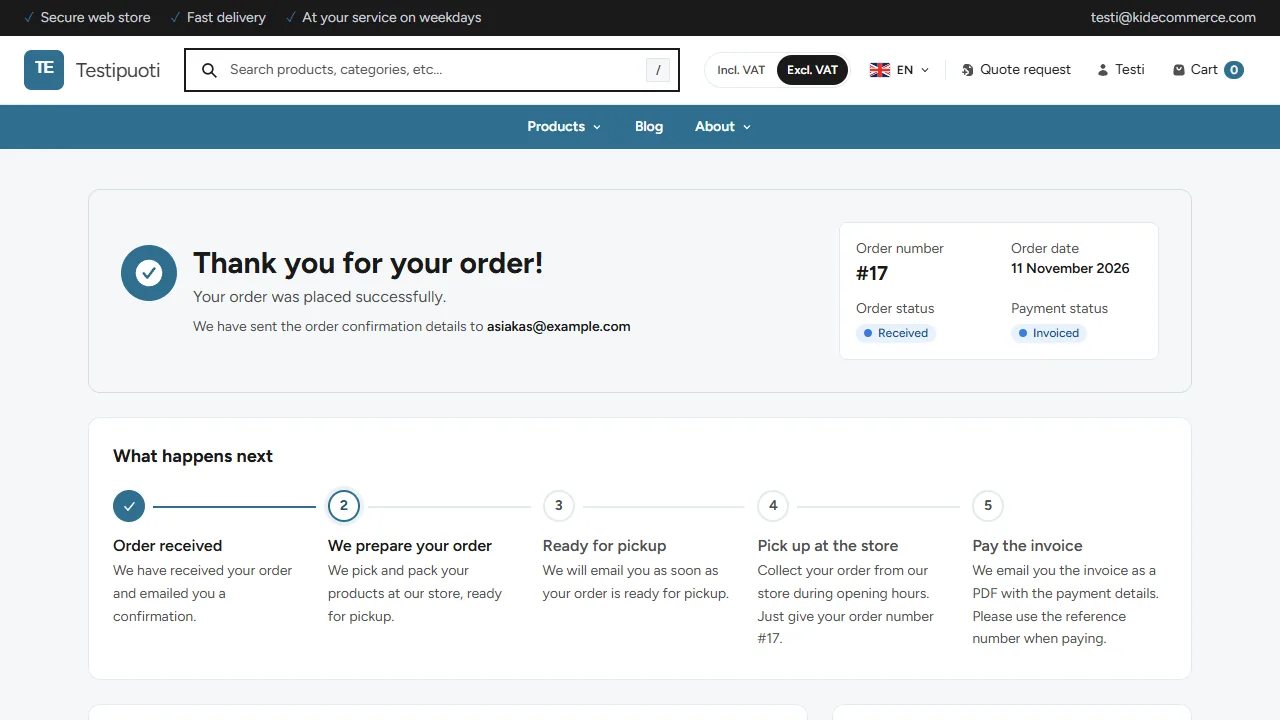
- Done: the quote became an order
The seller's quote editor
In the quote editor the seller changes quantities and prices, gives line discounts in percent or euros or a discount on the whole quote, and adds shipping. A note for the customer goes on the quote PDF and in the email. The quote is saved as a draft and only leaves when you press the button.
The customer accepts at checkout
The customer sees the quote in their account: the original and the new total, the discounts and the validity date. They can ask questions in the message thread, reject the quote or go to checkout. At checkout they choose delivery and payment, and a business customer can pay by invoice. The customer's reference travels from the quote to the order and the invoice.
The seller can also create a quote in the admin and turn it into an order with Convert to order, for example in phone sales. Quote reminders before expiry can be switched on. Read also about B2B e-commerce.
How to do it
- The customer adds products to the cart and presses Request a quote for this cart.
- In the admin, open Quotes and choose the new request.
- Press Edit quote, change prices and discounts and save. Write a note for the customer.
- Preview the PDF and press Send Quote. The customer gets the quote by email and in their account.
- The customer accepts the quote at checkout, and it becomes an order at the quoted prices.
Images: the KIDE Mini test shop, demo content.